
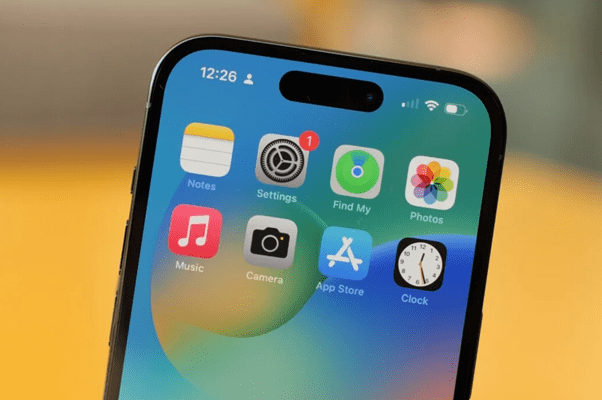
Think you know all the features and capabilities of your iPhone? Well, Apple smartphones have plenty of… hidden features that can take your experience to the next level!
Apple recently shared useful tips on the new features in iOS 16 in a video on the Apple Support channel. The video, which is less than six minutes long, was published to help users get used to the features on their new iPhones.
Watch the video:
Useful tips from Apple
1. In iOS 16, you can lift an object out of a photo and place it in another app by pressing and holding the object in the photo.
2. The new iOS 16 Lock Screen lets users personalise various elements, such as the colour and style of the time and date, as well as add more widgets.
3. In the Settings app, under Wi-Fi, you can select a saved Wi-Fi access point to reveal its password and copy and paste it.
4. If you often type the same thing, such as your email or address, you can save it as a text replacement in Settings - General - Keyboard - Text Replacement.
5. If your battery is running low or you want to save some battery life when you do not have access to a charger, add the “Low Power Mode” option to Control Centre for easy access. Add it to the list of included controls. Tap Settings - Control Centre.
6. To share or move multiple photos to another app, simply press and hold one, drag it away and keep selecting the others. You can then drag and drop all the photos into other apps or areas of iOS.
7. To open the camera quickly, press and hold the Camera shortcut in the bottom-right corner of your iPhone’s Lock Screen.
8. With iOS 15 and later, you can use Live Text to automatically translate text in the Camera app or within a photo. In the Camera app, point the camera at some text, tap the Live Text icon that appears in the right-hand corner and select Translate from the options.
9. You can easily scan a piece of paper and create a digital copy using the Notes app. The app will automatically crop and adjust the image so that the document is easy to read and free from glare.
10. If you are wondering what the first photo in your photo library was, you can find it with a single tap. Simply tap the top edge of your iPhone to jump to the first photo in any collection, album or search results in the Photos app.



Share:
How can you extend your mobile phone’s battery life?
iOS 17: Leaked details - What can we expect?