

Find out how to update to iOS 17 and make the most of the amazing new features it brings to your device. Follow our guide to update quickly and easily, ensuring your device always has the latest software and features. Read our guide below to find out how to get iOS 17.
First, you need to check whether your iPhone can run iOS 17. Even if your old iPhone still works, it may not support iOS 17. If you have one of the following iPhone models, you're covered:
- iPhone 15
- iPhone 15 Plus
- iPhone 15 Pro
- iPhone Pro Max
- iPhone 14
- iPhone 14 Plus
- iPhone 14 Pro
- iPhone 14 Pro Max
- iPhone 13 mini
- iPhone 13 Pro
- iPhone 13 Pro Max
- iPhone SE (2022)
- iPhone 12 mini
- iPhone 12
- iPhone 12 Pro
- iPhone 12 Pro Max
- iPhone SE (2020)
- iPhone 11 Pro Max
- iPhone 11 Pro
- iPhone 11
- iPhone XS Max
- iPhone XS
- iPhone XR
How to update:
Before you start the installation, a little preparation will help ensure that downloading and installing iOS 17 goes as smoothly as possible:
- Make sure your iPhone is connected to its charger. You won't be able to download iOS 17 if your battery is below 50%, so it's safer to keep your phone charging while you update. Even if it's connected to the charger, the battery must be above 20% to install iOS 17.
- Connect to Wi-Fi. You won't be able to download iOS 17 using your mobile data, so connect to a stable Wi-Fi network before starting the installation.
- Back up your data. Before updating, it's a good idea to create a backup of your data.
Once you've completed the steps above, start the process as follows:

Go to Settings > General > Software Update. You may need to tap Upgrade to iOS 17 at the bottom of the screen and then Download and Install, or you may be taken straight to Download and Install. Either way, if your iPhone has a passcode, you'll be asked to enter it. Agree to Apple's terms and then wait.
If there isn't enough space on your device, you'll see a message asking to temporarily remove apps. Tap Continue, and the apps will be reinstalled once the upgrade is complete.
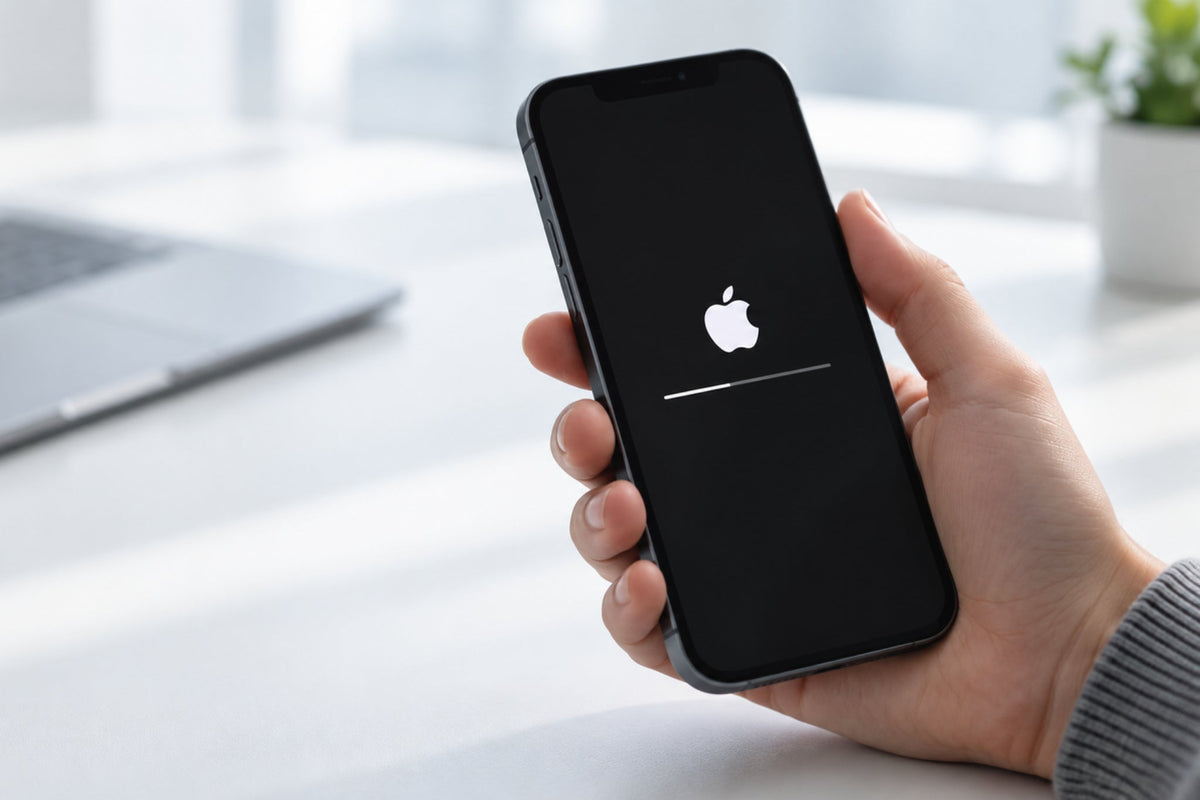
Once you've started the update process, you should see a progress bar, along with an estimate of how long the download will take. Once the download is complete, restart your iPhone and wait for iOS 17 to install. When your iPhone starts up, follow any prompts, and iOS 17 will then be installed on your device.



Share:
Samsung Galaxy Fit 3: Full Feature Reveal and Expected Improvements Ahead of the Official Launch
iOS 17.4 Update Guide: EU Innovations and Global Improvements for iPhone and iPad