

Apple is here to put an end to the problem of remembering passcodes for electronic devices and make life easier for us.
If you often forget the passcode for your mobile or another electronic device, or if you have an iPad and have forgotten its passcode, Apple has the solution.
How many times have you been unable to remember the passcode you set, or entered the wrong passcode repeatedly, causing your iPad to become disabled? Below you can find two very easy ways to unlock it, without the stress.
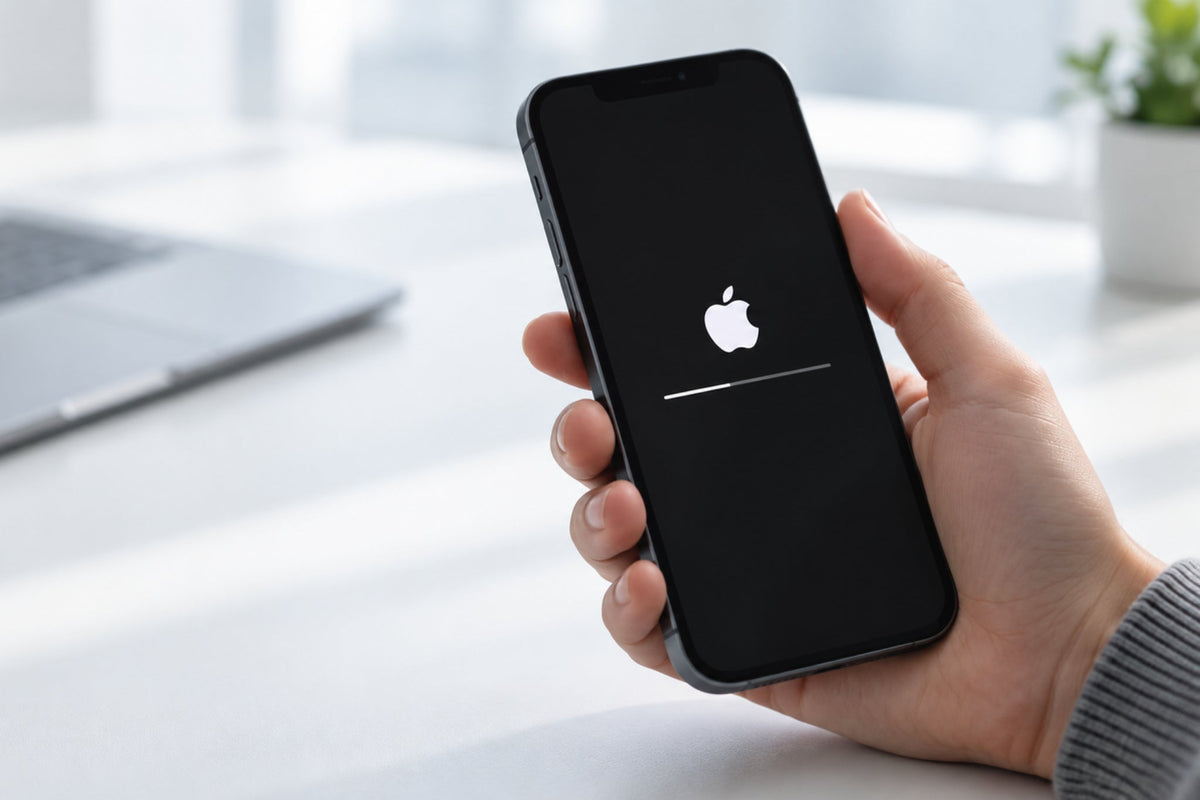
The only drawback to this process is that you will need to restore your iPad to factory settings, although you can restore a recent backup through iTunes. BusinessInsider reports that the following process will erase all data on your iPad, as well as the passcode, allowing you to unlock it and recover your data from a backup, which is why we recommend creating one regularly! Here is what to do:
- Open iTunes on your computer and connect your iPad using a compatible USB cable.
- Put your iPad into recovery mode as follows:
-If your iPad has facial recognition, quickly press the volume up button, press the volume down button and finally hold the power button until the iPad recovery mode screen appears.
-If your iPad has a Home button, press and hold the Home and Power buttons simultaneously until the recovery mode screen appears.
3. Your computer will display a message reporting a problem with your iPad. At this point, click «Restore».

If your iPad will not unlock, you can reset it to factory settings and then select «Restore» to recover data from your backup.

If, however, you do not have iTunes installed on your computer, you have the alternative option of unlocking your iPad through Find My iPhone, provided you have enabled this feature. In this case, follow the steps below:
- Open the Find My iPhone page. If you have another iOS device (e.g. an iPhone), open the Find My iPhone app.
- Sign in to your iCloud account.
- On the Find My iPhone page, follow the «All Devices» link and select the locked iPad from your list.

- Next, select «Erase iPad».

- A window will then appear asking you to confirm that you want to erase all content and settings on your iPad. Click the «Erase» button to complete the reset.
- If you are using the Find My iPhone app, select your iPad from your list of devices and click «Actions».


- Select «Erase iPad» and confirm your choice using the red «Erase Mac» button.

- Once your iPad has been erased and restarted, you can restore it from a recent backup.
If, however, this process seems complicated, the specialist team at THEFIXERS will be happy to assist you and help you unlock your iPad in just a few minutes at one of our shops!



Share:
Is an Apple gaming console on the way?
Apple AirTags are expected to show signs of wear from everyday use!