
Privacy and personal data protection are now among the most talked-about topics in the world of technology. That is why even companies such as Google, which love collecting data, are introducing a range of privacy settings.
The latest Android 12 update brings a range of privacy additions that are worth exploring. Some work automatically and are not immediately visible, while others are more noticeable, making it easier to understand how they work and adjust them to suit your preferences.
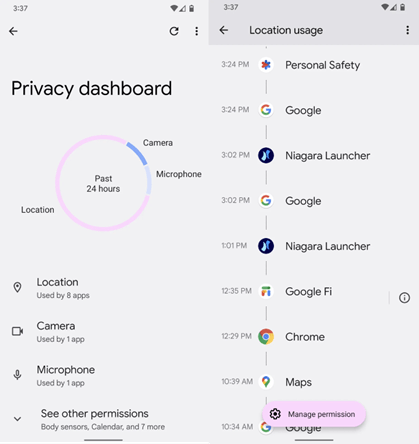
First of all, there is Google's revamped Privacy Dashboard. Essentially, this is an improved control centre that lets you see and restrict the access different apps have to your device's features.
You can access the Privacy Dashboard in three simple steps:
- Open the quick access panel for system settings by swiping down twice from the top of your screen, then tap the cog icon once the panel appears.
- Scroll down to the “Privacy Policy” section, or “Privacy” if your device is set to English.
- Select the “Privacy Dashboard” category, also labelled “Privacy Dashboard” in English.

From the Privacy Dashboard, you can access app permissions for any feature you are interested in, such as contacts, location, microphone and camera, which we will cover in more detail shortly. Here, you can also view a precise timeline showing which apps accessed each type of information and for how long.
If you want to disable an app's access to any of the features above, go to “Permission Management” or “Manage permission” at the bottom of the screen. There, you will also have the option to enable approximate location instead of precise location, so apps cannot pinpoint exactly where you are.
Android 12 also gives you more control over the data collected through your device's microphone and camera. A new feature occasionally displays an indicator at the top right of your screen, showing that an app is accessing your device's microphone and camera, even if it is running in the background. Whenever this indicator appears, you can swipe down once from the top of the screen and tap it to see which app is responsible.

Tapping one of these indicators will take you straight to Permission Management, where you can change the level of access allowed.
However, to disable data collection from the camera, microphone and GPS sensor altogether with a single action, you will need to follow these steps:
- Open the Quick Settings panel by swiping down again from the top of your screen.
- These controls will most likely not be in the default layout, so you will need to tap the three-line icon in the bottom left corner of the menu and look for the “Edit” option.
- Scroll down and look for the tiles labelled “Camera access”, “Microphone access” and “Location”.
- From here, you can add them to your default layout by pressing and holding each one for just over a second and dragging it to your preferred position.
- Once you have placed all three icons in the main Quick Settings panel, you will be able to enable and disable sensor access instantly by simply tapping the feature you want.




Share:
Slow internet? TheFixers are here to help you upgrade your network
A first look at the much-anticipated iPad Pro